SAP Plant Maintenance (SAP PM) is a software product that manages all maintenance activities in an organization. Plant Maintenance module consists of key activities to include inspection, notifications, corrective and preventive maintenance, repairs, and other measures to maintain an ideal technical system.
Audience
This tutorial has been prepared for anyone who has a basic knowledge of Plant Maintenance activities like inspection and maintenance. After completing this tutorial, you will find yourself at a moderate level of expertise in Plant Maintenance activities and possess fair knowledge of the key functions mentioned in this tutorial.
Prerequisites
Before you start proceeding with this tutorial, we assume that you are well-versed with the basic meaning of terms like inspection, maintenance, breakdown and other key terms related to Plant Maintenance.
You should also have a basic understanding of other SAP modules like Material Management, Sales and Distribution, and Production Planning. If you are not aware of these concepts, then we recommend that you first go through an overview chapter of any of these modules.
SAP Plant Maintenance (SAP PM) application component provides an organization with a tool for all maintenance activities to be performed. All the activities that are performed under maintenance are interconnected and hence this module is closely integrated with other modules - Production Planning, Material Management, and Sales and Distribution.
Using SAP PM, you can perform automatic repairs and facilitate maintenance requests in an organization. It allows you to record problems in SAP system, plan labor and material activities, and to record and settle the cost.
In an organization, you can identify, document, manage problems and perform enterprise asset management for any required assets.
To perform these activities, Plant Maintenance contains the following submodules −
- Management of technical objects and equipment master record.
- Planning of maintenance task.
- Manage workflow notifications and work orders under maintenance order management.
Key Functions of Plant Maintenance
Following activities are performed under Plant Maintenance −
Inspection
Inspection is done to check the actual condition of a technical system.
Preventive Maintenance
Preventive maintenance is used to maintain high availability of the technical system. It includes maintenance planning and work scheduling activities for technical objects.
Repair
Repair involves all measures that can be performed to restore the ideal condition. Repair process can be performed at many planning stages - like work scheduling, resource planning and initial costing, etc. You can respond immediately w.r.t to a damage events causing production shutdown. You can create required purchase requisition and processed work orders to reduce the downtime.
Integration with Other Modules
In SAP PM, you can integrate with other modules such as Material Management, Production Planning, Personnel Management, and Sales and Distribution. These modules are used to keep the current data as per the requirement in Plant Maintenance and are initiated automatically to maintain the current data in the system.
Following are the key modules in which integration is performed with Plant Maintenance −
- Material Management
- Sales and Distribution
- Personnel Management
- Controlling
- Production Planning
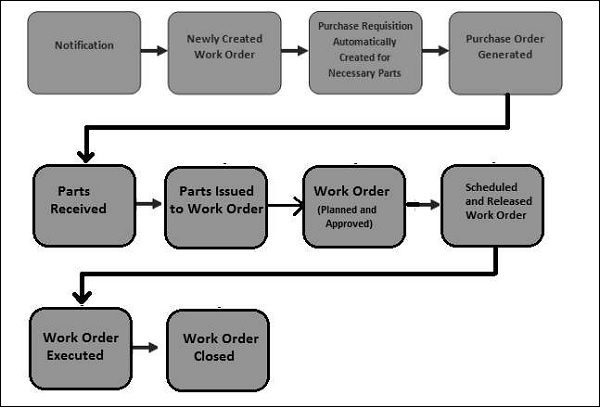
The following figure depicts a work order notification process and shows how it is executed under Plant Maintenance.
The key steps involved are −
- Notification
- Newly Created Work Order
- Creation of Purchase request for work orders
- Purchase Order created and parts Received
- Parts issues to Work Order
- Approval and Planning of Work Order
- Scheduling and Releasing Work Order
- Work Order Execution
- Closing a Work Order
To effectively manage SAP Maintenance activities in an organization, you need to divide the existing maintenance structure into technical objects. Technical objects are used to define the machine types that exists in an organization and using the object characteristics, you can further define other technical objects
To show technical objects in the system, you should know about maintenance planning and structure in the organization. This involves the task of defining the maintenance plant and maintenance of the planning activities in the system.
Maintenance Plant
Maintenance plant for a technical object is known as a plant in which you perform the maintenance tasks for the objects and planning is done. You can perform the following activities in Maintenance Planning Plant −
- Define the task list as per the maintenance plan
- As per BOM in the task list, perform material planning
- Manage and schedule maintenance plans
- Create and execute maintenance orders
Example
Let us say the maintenance plant for a modelling plant P1 is 001 and maintenance planning tasks for this plant is assigned to plant 002. In plant 002, you have maintenance planner group works and in SAP system it is shown as maintenance planning plant. So maintenance planning plant for Plant P1 is 002 and maintenance planner group works for plant 001 and 002.
Maintenance Planning
As per the structure of the organization, maintenance planning can be performed. You define the tasks under maintenance planning as per the structure and defined technical objects. Following types of maintenance planning is possible −
- Centralized Maintenance Planning
- Decentralized Maintenance Planning
- Partially Centralized Maintenance Planning
Centralized Maintenance Planning
Within an organization, centralized planning supports the following structures −
There is only one plant for all the technical objects which is the maintenance planning plant and maintenance plant.
In other scenarios, it is possible that an organization has multiple maintenance plants, but there is one plant where maintenance planning is performed.
According to the above example −
- Plants − 001, 002
- Maintenance Plants − 001, 002
- Maintenance Planning Plant − 002
- Plants assigned to maintenance planning plant − 001
Decentralized Maintenance Planning
In this scenario, the organization consists of multiple plants and each plant acts as its own maintenance planning plant. In SAP system, all plants are mentioned as maintenance planning plant.
- Plants − 001, 002
- Maintenance Plants − 001,002
- Maintenance planning plants − 001, 002
Partially Centralized Maintenance Planning
In partially centralized maintenance planning, an organization consists of multiple plants and some of the plants act as maintenance plants and maintenance planning plants, while the other plants can act as maintenance planning plants. The plants which are not responsible for maintenance planning, they are assigned to other maintenance planning plants.
- Plants − 001, 002, 003,004
- Maintenance Plants − 001, 002, 003, 004
- Maintenance Planning Plant − 001, 004
- Plants assigned to maintenance planning plant 001 − 001, 002
- Plants assigned to maintenance planning plant 004 − 003, 004
Structure of Technical Objects
Different types of structures can be used for technical object as per the structure of the organization. Following are the options −
Functional Structuring
In this type of structure, you divide your technical system as per functional locations. With the division of the product line into functional locations, an individual unit can act as functional locations in the system.
Object Related Structuring
In this structuring, you divide your technical system into pieces known as equipment. An equipment is an individual object, which can be placed in a technical system or a part of the technical system.
Functional and Object-based Structuring
It is a combination of both the functional and object-related structuring using equipment and they are divided as per functional location.
In this structuring, your functional location tells where the technical tasks are performed and equipment represents the object with which tasks have to be performed.
Note − In short, it can be said that a functional location is an organizational unit that is used to maintain the objects of a company as per the functional area, process-related or spatial criteria. A functional location represents the place at which a maintenance task is to be performed.
- Example of functional area − Pumping station
- Example of process related criteria − Modeling
- Example of spatial criteria − Store room
Creating a Functional Location
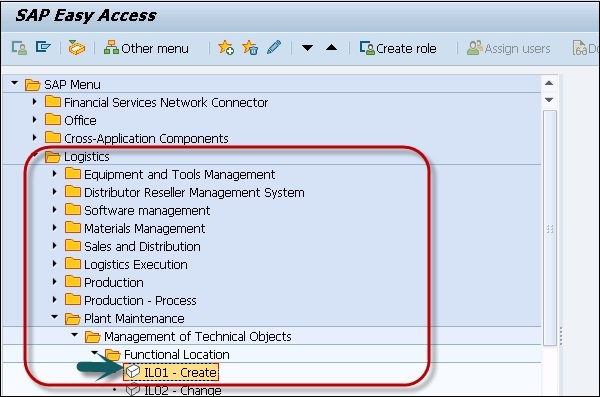
Step 1 − To create a functional location, navigate to Logistics → Plant Maintenance → Management of Technical Objects → Functional Location → Create
Step 2 − In the next window, you have to select the structure indicator you require and click Continue.
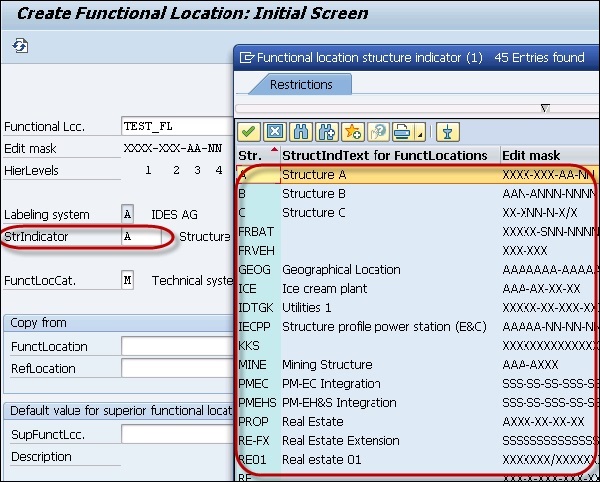
The system displays the edit mask for the location label as well as its hierarchy levels.
Step 3 − You can also select the functional location label and a technical location as a reference if necessary. Click the Continue button.
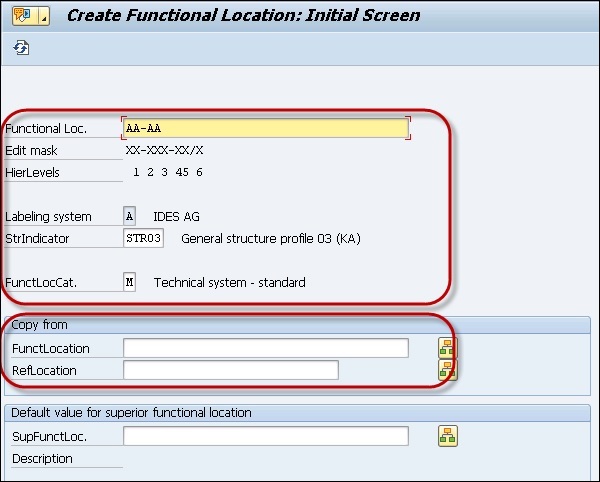

In the next window, you can see the screen Create Functional Location − Master data.
Step 4 − Enter all the details in the master data to create the functional location. If you want to classify the functional location, click the Classification option.
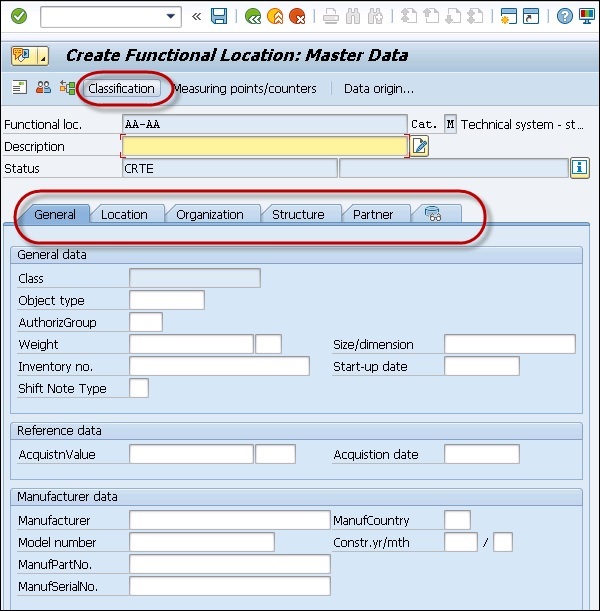
Step 5 − Once you click Classification, it will open Create Functional Location − Classification window.
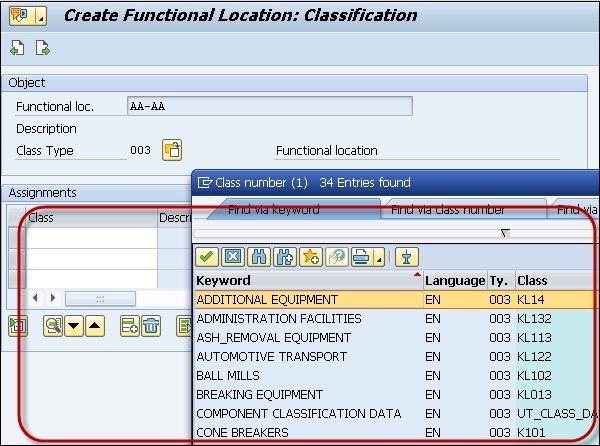
Step 6 − Enter the classes to which you want to assign the functional location in the column Class.
Step 7 − Select the class that is to be the standard class for the functional location in the field StdClass.
Step 8 − To specify value entries for the class, position your cursor on the class you require and choose Edit Values.
Step 9 − Select the status as shown in the following screenshot −
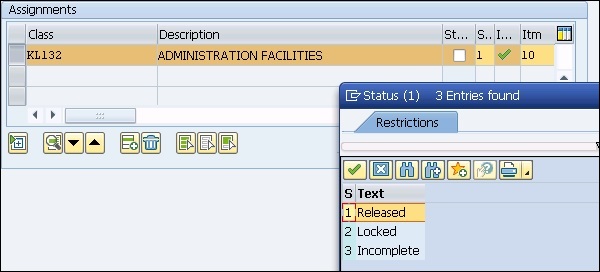
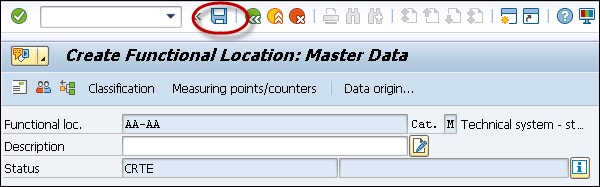
Step 10 − Once you define all the fields for the master record, go to the main screen using the arrow buttons. Click the Save button at the top to save the Functional location.

An equipment is known as an individual object in the system that is maintained independently. Equipment can be installed at different functional locations. You can create an individual equipment in an organization based on the object-based structure of a technical system.
The use of an equipment at a functional location are documented over the course of time. You always define Equipment master record for each technical object in the system.
Using an equipment, you can perform the following functions in the system −
- You can manage an individual data from a maintenance perspective in the SAP system.
- You can perform an individual maintenance task for each technical object in the system.
- You can use this to maintain a record of all the maintenance tasks performed for a technical object.
- In case you want to see data for an object for a longer time, you can use an equipment master record for the same.
An Equipment master record should be created in the following scenarios −
- When you manage individual data for the technical object.
- When you perform the maintenance tasks for technical objects.
- When you collect and record technical data for the objects for long time periods.
- When you monitor the cost of maintenance tasks.
- When you want to record the technical objects at functional locations.
Equipment records can be used in the following functional application areas −
- Material Management
- Sales and Distribution
- Production Planning
- Controlling
Representing an Object as an Equipment or as a Functional Location
In case of breakdown, you should represent an object as a Technical Object if it is repaired. When you define an object as a Technical object, you can maintain the service history of the object in the system. Note that you can’t change the equipment number once it is created in the system. If you have entered an incorrect number mistakenly you need to achieve this to change it.
When you are using a multiple piece of equipment you need to classify the equipment to perform a quick search.
When you exchange an object in case of a breakdown due to its low value, in this case you don’t need to maintain a service history. For each functional location, you have to define a structure indicator as mentioned earlier. When you maintain a functional location in another functional location, you can’t store the installation location history.
Creating a Master Record For a Piece of Equipment
Step 1 − To create a master record for a piece of equipment, navigate to Logistics → Plant Maintenance → Management of Technical Objects → Equipment → Create

Step 2 − To refer any other material/equipment, you can select under Reference option.

Step 3 − Select any equipment/master number and a new window will be displayed to select which data of the reference equipment should be copied to the new equipment. Then choose Continue and you return to the screen General Data.

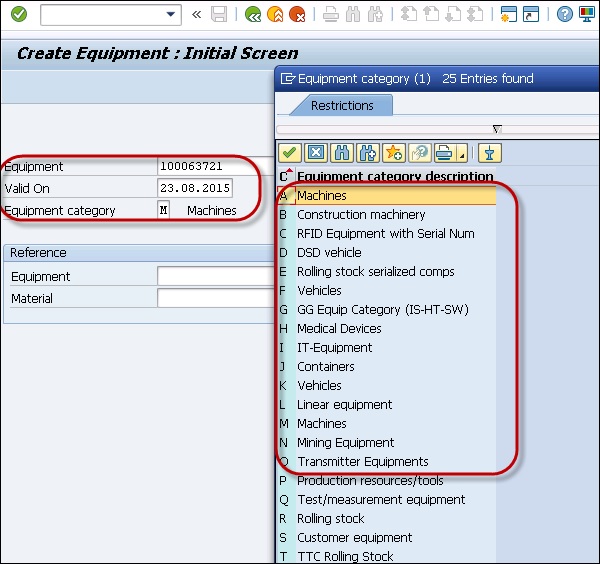
Step 4 − You will see the Create Equipment screen. Enter the details as per the requirement.

Step 5 − Click the Save button at the top of the screen.

You can also create a piece of equipment without using any reference.
Changing a Piece of Equipment
You may also need to make changes to an equipment master record. There is a possibility that data has been changed, or you have mistakenly entered wrong data, and you have to change the master record.

Step 1 − Enter the Equipment number that you want to change and click the ENTER button.

Step 2 − You will see the Change Equipment screen. In this window, make all the necessary changes in this screen. To change further data, go to the required screens.
Step 3 − You can change the equipment category. Choose Edit.
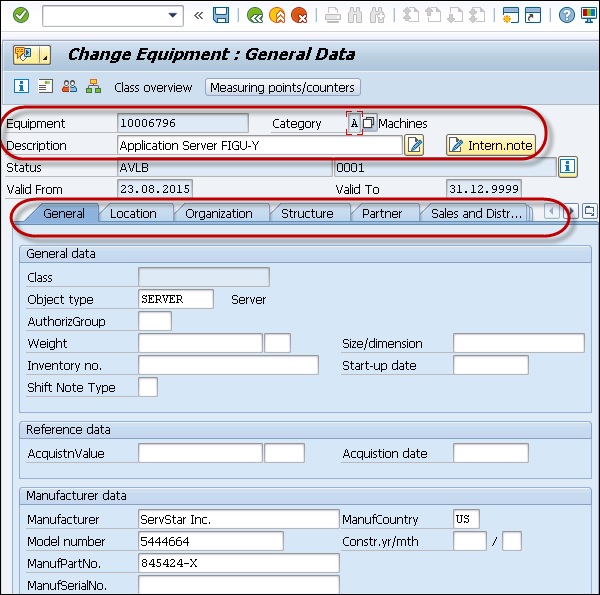
Step 4 − In the dialog box, you can select new Equipment category. Click the Save button to save the data.

Changing the Maintenance Plant
You may also require to change the maintenance plant as per the requirement. You can change the maintenance plant for a piece of equipment when it is no longer installed at the functional location. When you change a maintenance plant, following fields in the master record effects −
The fields that are dependent on the maintenance plant gets cleared.
The company code also changes. Hence all fields that are dependent on the company code gets cleared.
With the change in the company code, the controlling area may also change. Hence the fields associated with the controlling area gets cleared.
Step 1 − To change the maintenance plant, open the equipment master record. Select the equipment master record from the available list.

Step 2 − Go to the Location data tab → Change Maintenance

You will receive a warning of changing the maintenance plant.
Step 3 − To continue, click the Continue button.
Step 4 − Save the changes to the master record.


Activating/Deactivating an Equipment Master Record
When you want to deactivate an equipment master, you should know the results of the action.
Step 1 − To perform this, open the equipment master in create/change mode.

Step 2 − Go to the Equipment tab at the top → Functions → Active-Inactive → Deactivate

The system then shows the status - Object deactivated → Save the master record.
Step 3 − To activate the Equipment, go to the Equipment tab at the top → Functions → Active-Inactive → Activate